We redesigned Sarvita for iPhone Duo
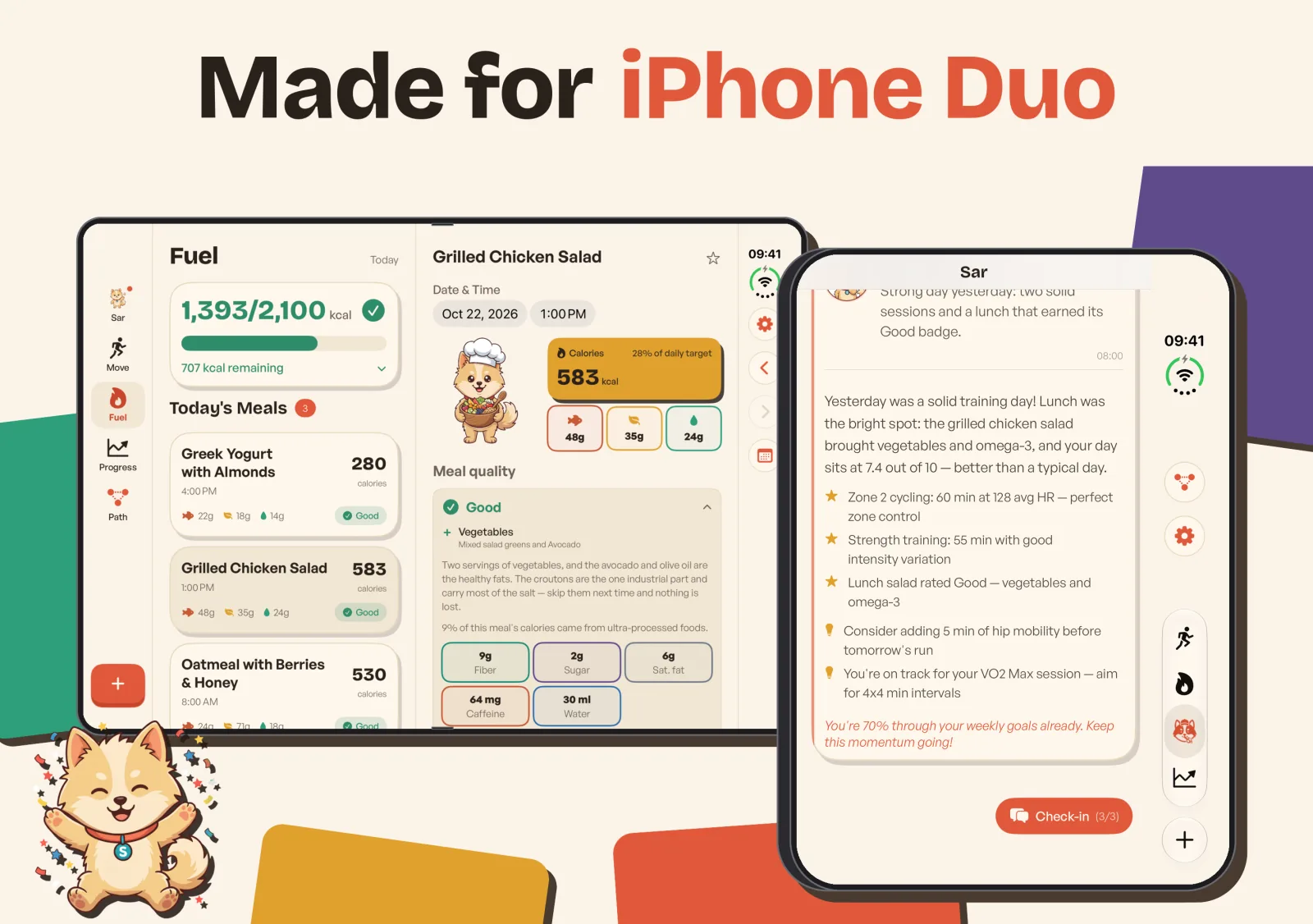
If you’ve been waiting for a longevity app that doesn’t treat a folding phone as an awkwardly large phone, today is a modest sort of good day. Sarvita 1.23.0 is built for iPhone Duo. We redesigned it, properly: every main screen (Sar, Move, Fuel, Progress and Path) now has a layout made for the open display, and the folded outer screen gets the whole display too.
Nothing about what Sarvita measures has changed. Your biological age is still your biological age. It simply has more room to sit in.
Folded: the whole outer screen
With the phone closed, Sarvita now fills the entire outer screen. The tab bar lives in the side strip, rather than sitting beside a black bar.
Path and Settings have moved into that same strip, beneath the status icons, rather than in each tab’s header. They open the same sheets as before. Every other screen keeps its header buttons.
Open: a rail or a sidebar
Unfold it and Sarvita runs edge to edge. You move between Sar, Move, Fuel, Progress and Path with a side rail or a sidebar, depending on how wide the window is. Log a meal stays at the bottom, where you’d look for it.
On narrow windows the rail shrinks to a compact set of icons, and Fuel, Sar and Move drop to a single column when their cards need the room. It’s quite sensible about it.
Path becomes a map
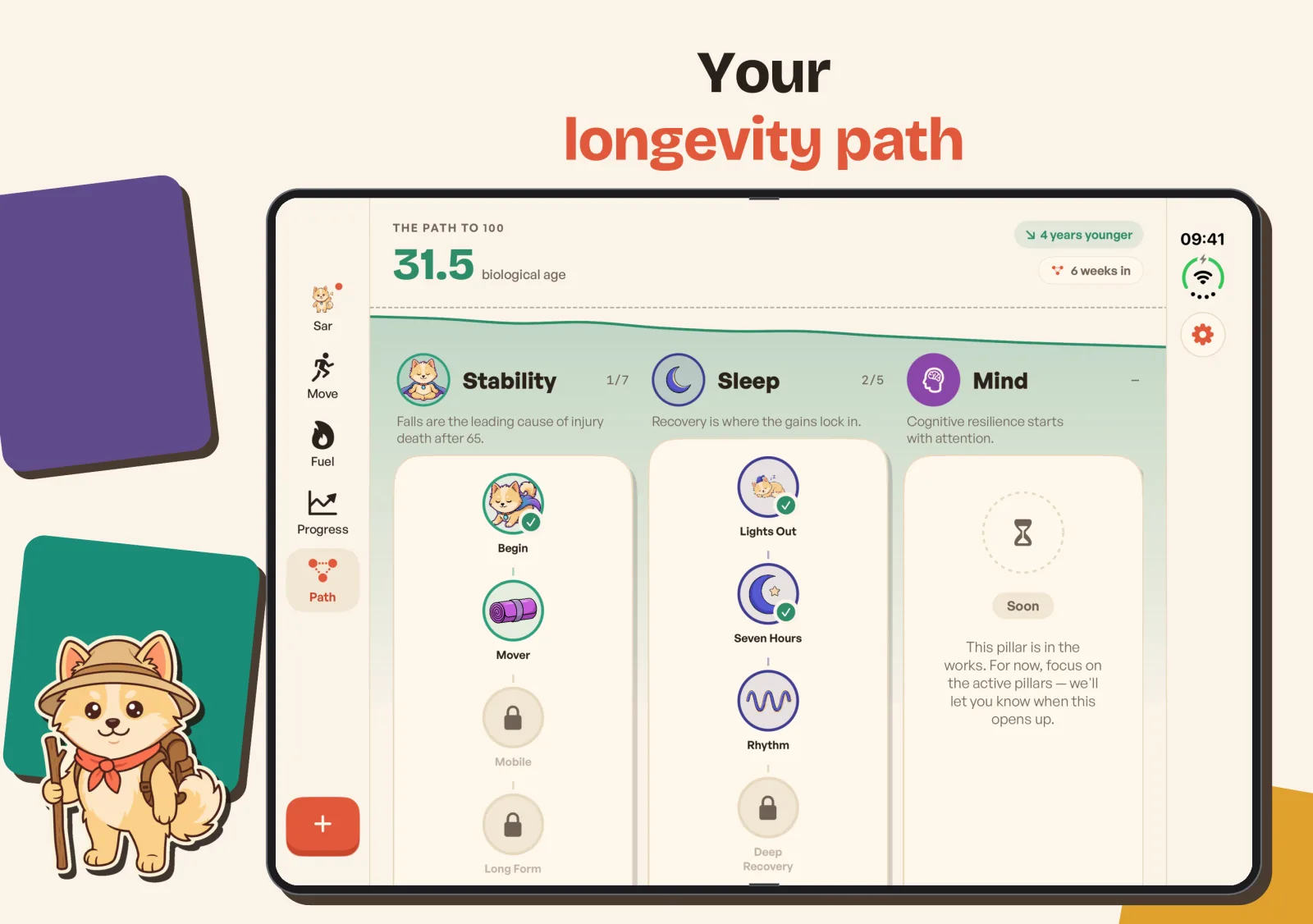
The Longevity Path is where the open display earns its keep. Several pillar columns sit side by side under your biological age, so you can see where each pillar stands without paging through them one at a time. In the sidebar, the pillar list jumps you to a column.
Fuel: your meals beside the day
Fuel shows the day’s meals on one side, and a day view on the other: what’s still to go, macros, diet quality, and water and caffeine. Tap a meal and it opens in place, quality card and all. You can edit it right there, and Save and Discard appear only while you’re editing.
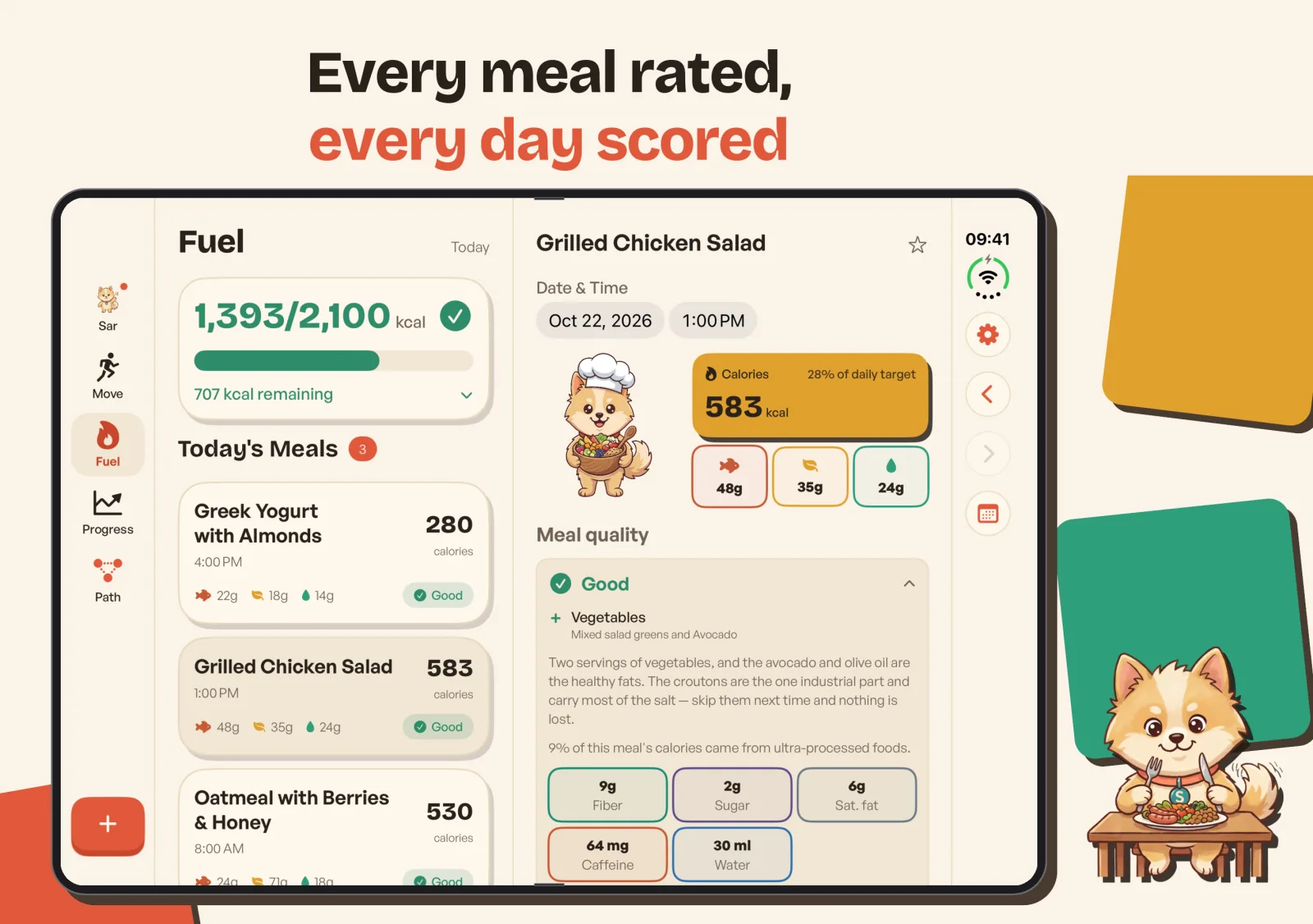
The list and the detail scroll independently, which sounds like a small thing until you’ve used a split view that doesn’t.
Progress: three card sizes
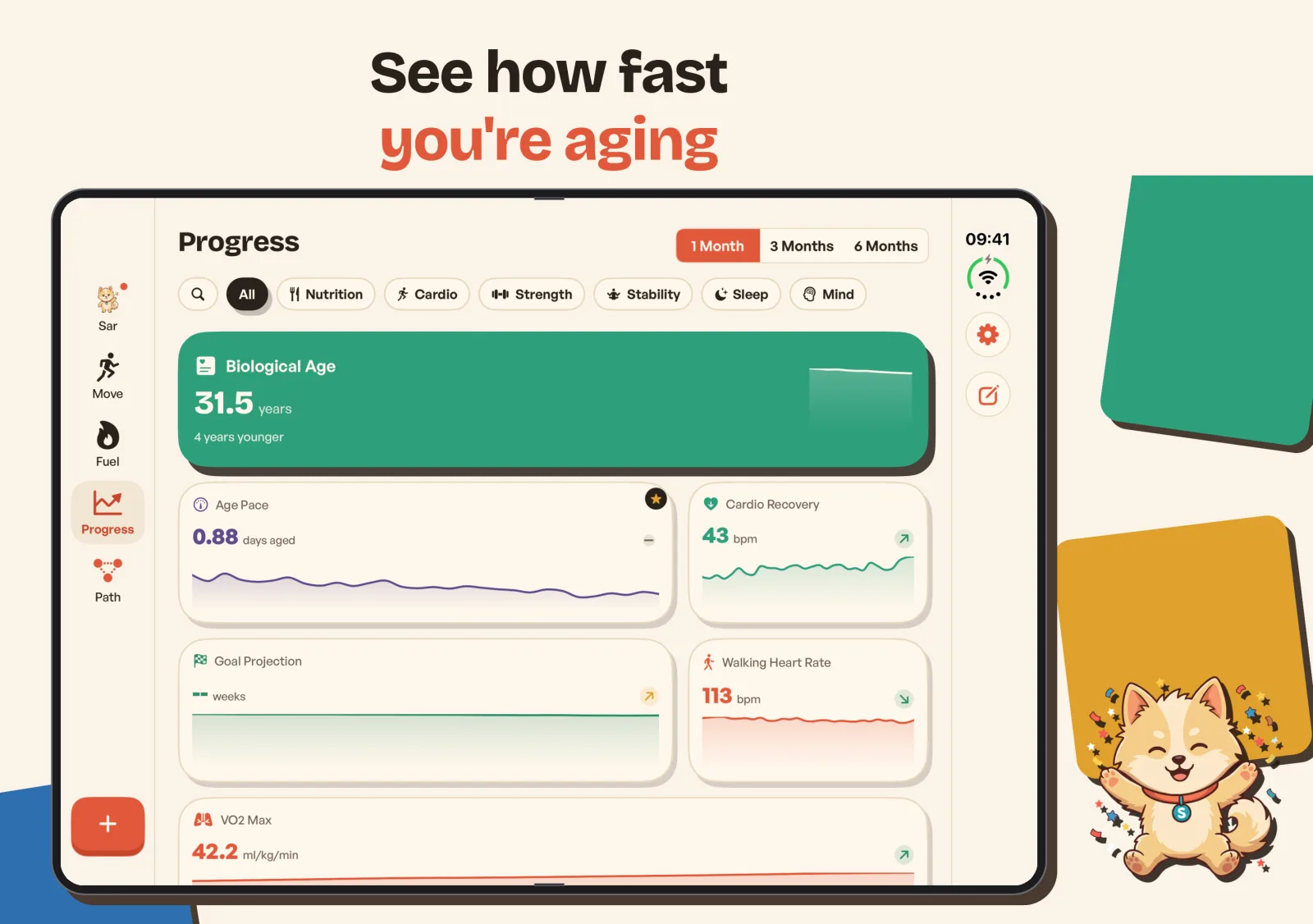
Progress puts Biological Age together with your metric cards in a grid that fits the width of the screen. In edit mode on wider screens, each card can be small, medium or large, spanning one, two or three columns. That choice is saved separately from the half-width or full-width setting on your iPhone, so one doesn’t disturb the other.
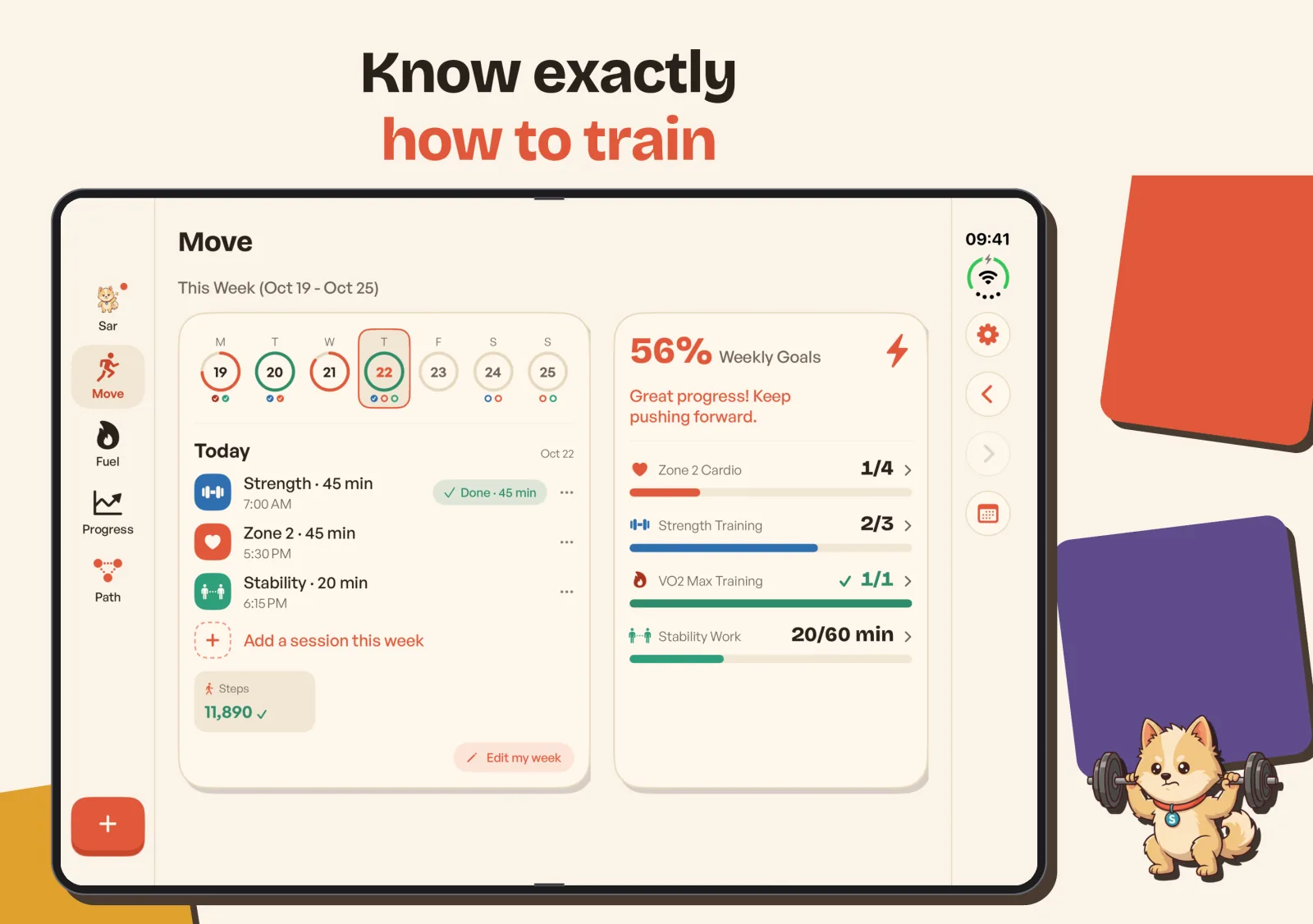
Move: the week and your goals, side by side
Move places the week and its sessions beside your Weekly Goals card. The goals stay put while the week scrolls, so the progress bars are in view while you decide what to do today.
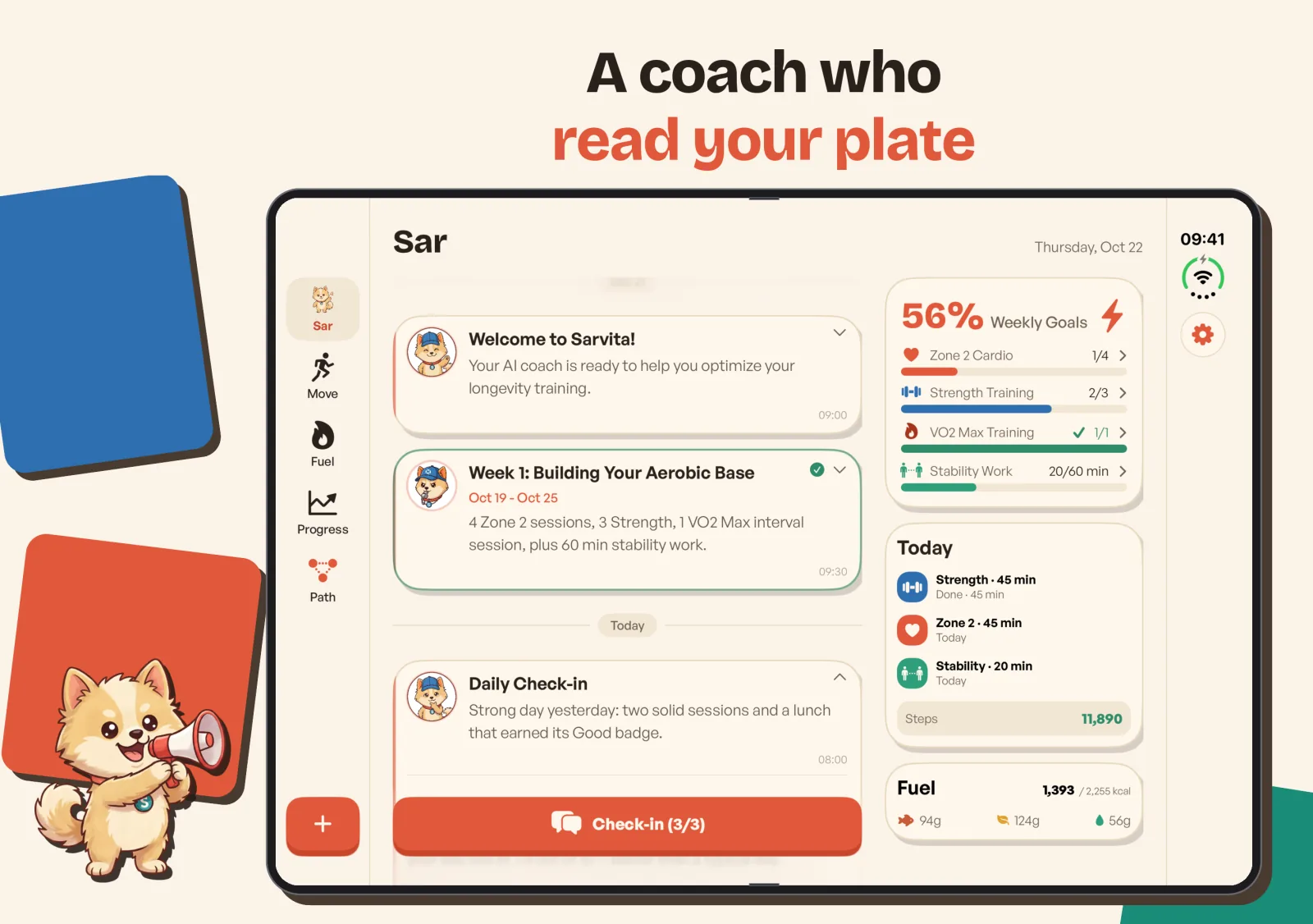
Sar: check-ins beside a glance at the week
Sar shows your check-ins on one side and a live glance at the week on the other: your goals, today’s sessions and steps, and Fuel. Check-in sits at the bottom of the main column, where your thumb already is.
Hands-free, briefly
There’s one more thing the fold is good for. In tabletop pose, the mobility session puts the exercise art and cues above the fold, and the timer and controls below, so you can follow along from the floor. (If you want the case for mobility work itself, that post is the place.)
The Zone 2 Apple Watch companion also gains a large distance view on the Duo’s closed outer display, which is rather useful in a Zone 2 session when you’d like to read your distance without squinting. Closing it leaves the watch workout running.
Folding mid-task
People fold phones at awkward moments, so we tried to make that boring. If you fold the phone halfway through editing a meal in Fuel, your unsaved edit comes with you to the compact sheet. And if you have two Sarvita windows open, on iPad or iPhone Duo, each Path unlock is recorded once, and closing its celebration in one window closes it in the other.
Getting it
Update Sarvita to 1.23.0 from the App Store. There’s nothing to switch on. Fold it, open it, and the layout follows. It works on iPad too.
One unrelated addition while we were in there: you can now save meal photos taken with Sarvita’s camera to your photo library. It’s off by default, and you can turn it on in Settings.
Related posts
What Is Biological Age and Why It Matters More Than Your Birthday
Chronological age counts years since birth; biological age measures how well your body is actually aging — and …
Mobility and longevity: what the sit-rise test says about how you're aging
A simple floor test predicts all-cause mortality more accurately than most clinical measures. Here's the …
Zone 2 cardio: the slightly boring training that actually works
Zone 2 is the lowest-glamour, highest-impact training for longevity. Here's what it actually is, why …
What's your biological age?
Reading about longevity is step one. Knowing your number is step two — a free 2-minute test, no signup.
Check your biological age →